

Few things are more frustrating than your computer randomly disconnecting from Wi-Fi during an important meeting, online class, file upload, or gaming session. In many cases, users immediately blame their internet provider, but the real issue is often much closer to home.
Wi-Fi disconnections can happen for several reasons, including outdated drivers, router problems, signal interference, overheating hardware, or incorrect power settings. Understanding the actual cause is the first step toward fixing the problem properly instead of relying on temporary solutions
Outdated Drivers and Router Firmware
One of the most common causes of unstable Wi-Fi is outdated software. Your wireless adapter relies on drivers to communicate with your operating system and router. If these drivers become outdated or corrupted, connection drops can occur frequently.
The same applies to router firmware. Older firmware may struggle with newer devices, security protocols, or high network traffic. Updating both your Wi-Fi drivers and router firmware can often improve connection stability immediately.
Signal Interference and Weak Coverage
Wi-Fi signals are heavily affected by physical surroundings. Thick walls, metal objects, microwaves, Bluetooth devices, and even neighbouring Wi-Fi networks can interfere with wireless signals.
This is especially common in flats, offices, or homes with many connected devices operating on similar wireless channels.
Some signs of interference include:
- Wi-Fi disconnecting only in certain rooms
- Slow speeds during peak hours
- Strong signal near the router but weak coverage elsewhere
- Frequent lag during video calls or gaming
Positioning your router centrally and away from electronics can significantly improve performance.
Laptop Power-Saving Settings
Many laptops automatically disable or reduce power to the wireless adapter in order to conserve battery life. While this helps extend battery duration, it can sometimes cause random disconnections, particularly when the system switches between power modes.
Disabling aggressive power-saving settings for the network adapter can improve Wi-Fi reliability considerably.
Overloaded or Aging Routers
Older routers often struggle to handle modern internet usage. Multiple phones, smart TVs, streaming devices, gaming consoles, and laptops connected simultaneously can overwhelm outdated hardware.
Signs your router may need upgrading include:
- Frequent random disconnects
- Slow speeds despite a fast internet package
- Devices struggling to reconnect automatically
- High lag or buffering during streaming and gaming
Modern dual-band and Wi-Fi 6 routers offer much better stability, speed, and device handling compared to older equipment.
Malware and Background Network Usage
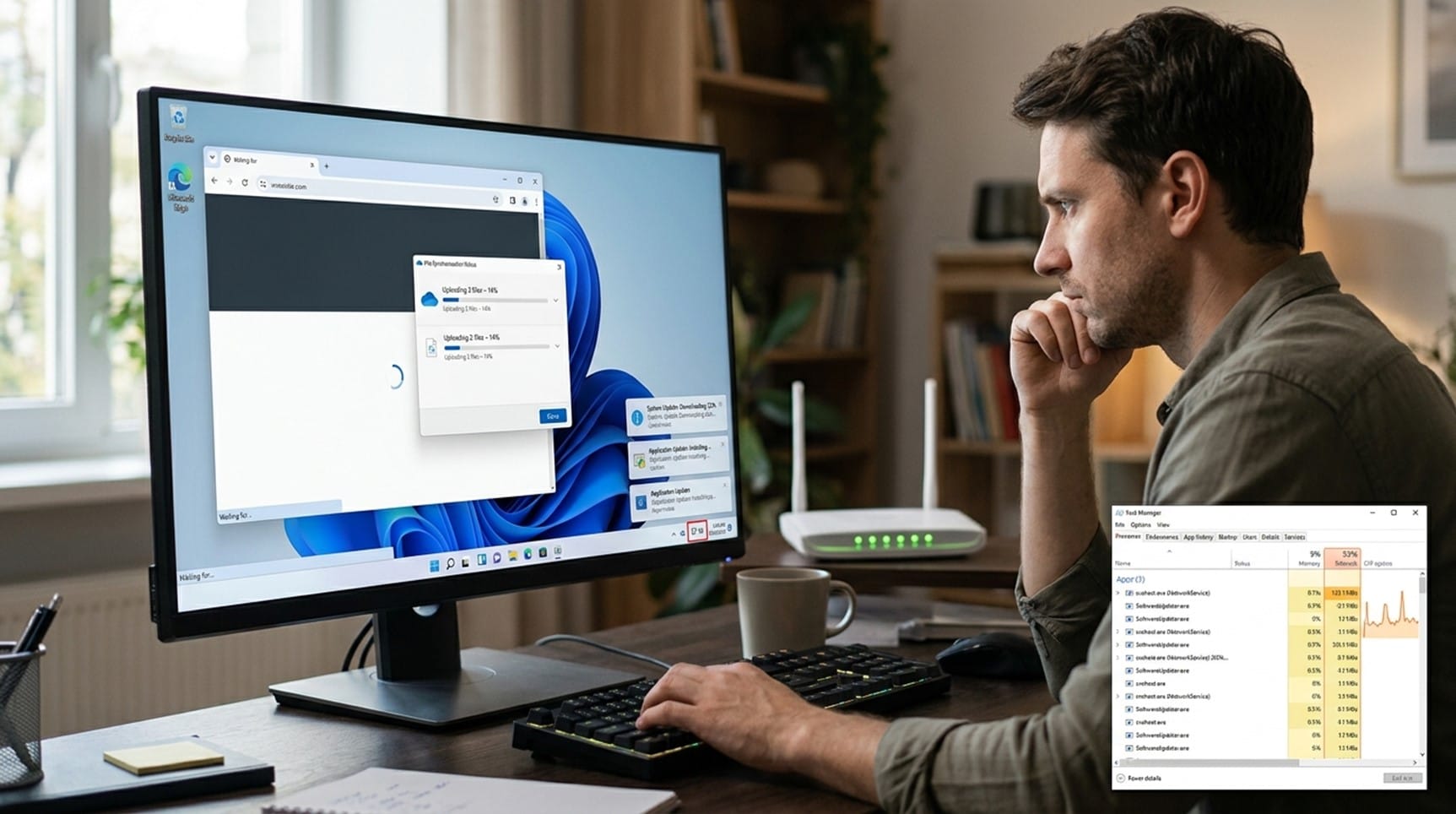
In some situations, hidden software issues may also cause network instability. Malware, excessive background updates, VPN conflicts, or heavy cloud-syncing applications can overload your connection and trigger intermittent problems.
Running proper diagnostics helps identify whether the issue is hardware-related, software-related, or network-related.
Simple Fixes You Can Try First
Before replacing hardware, try these basic troubleshooting steps:
- Restart your router and computer
- Update Wi-Fi drivers
- Update router firmware
- Move closer to the router temporarily
- Change Wi-Fi channels
- Disable network adapter power saving
- Forget and reconnect to the Wi-Fi network
- Test using Ethernet to isolate the issue
These small changes can often resolve common instability problems.
When Professional Diagnosis Matters
If your Wi-Fi continues disconnecting after basic troubleshooting, the issue may involve failing hardware, damaged network cards, overheating components, incorrect router configuration, or larger network congestion problems.
At Focus PC, we help homes and businesses diagnose network problems properly instead of relying on short-term fixes. From router optimisation and Wi-Fi troubleshooting to hardware upgrades and full IT support, stable connectivity starts with identifying the real cause.