
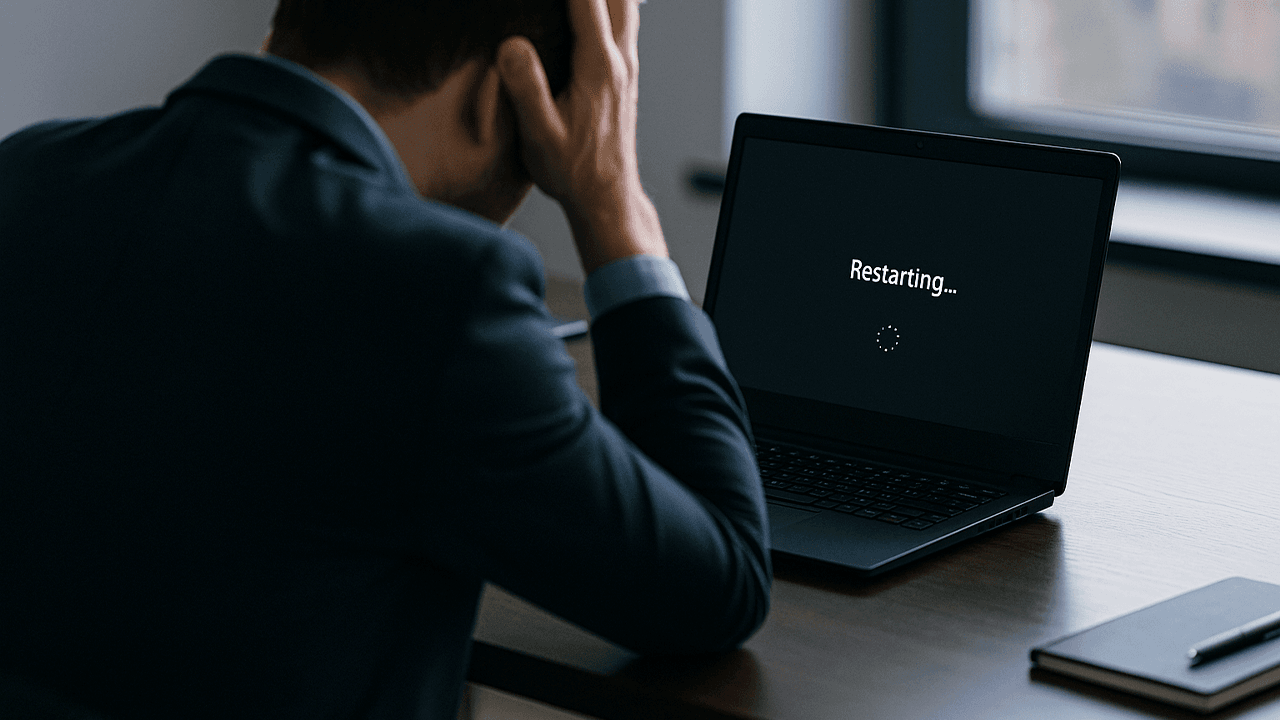
A computer that keeps restarting can disrupt everything. It might happen during startup, while you are gaming, or right in the middle of an important task. What makes it even more frustrating is that the cause is not always obvious. Sometimes the system simply overheats. Other times the issue is more serious, such as faulty RAM, a weak power supply, or corrupted system files.
In this guide, we’ll explain the most common reasons your computer gets stuck in a restart loop, show you how to check the problem on your own, and help you understand when it’s better to hand it over to a professional.
Why your PC keeps restarting and what usually causes it
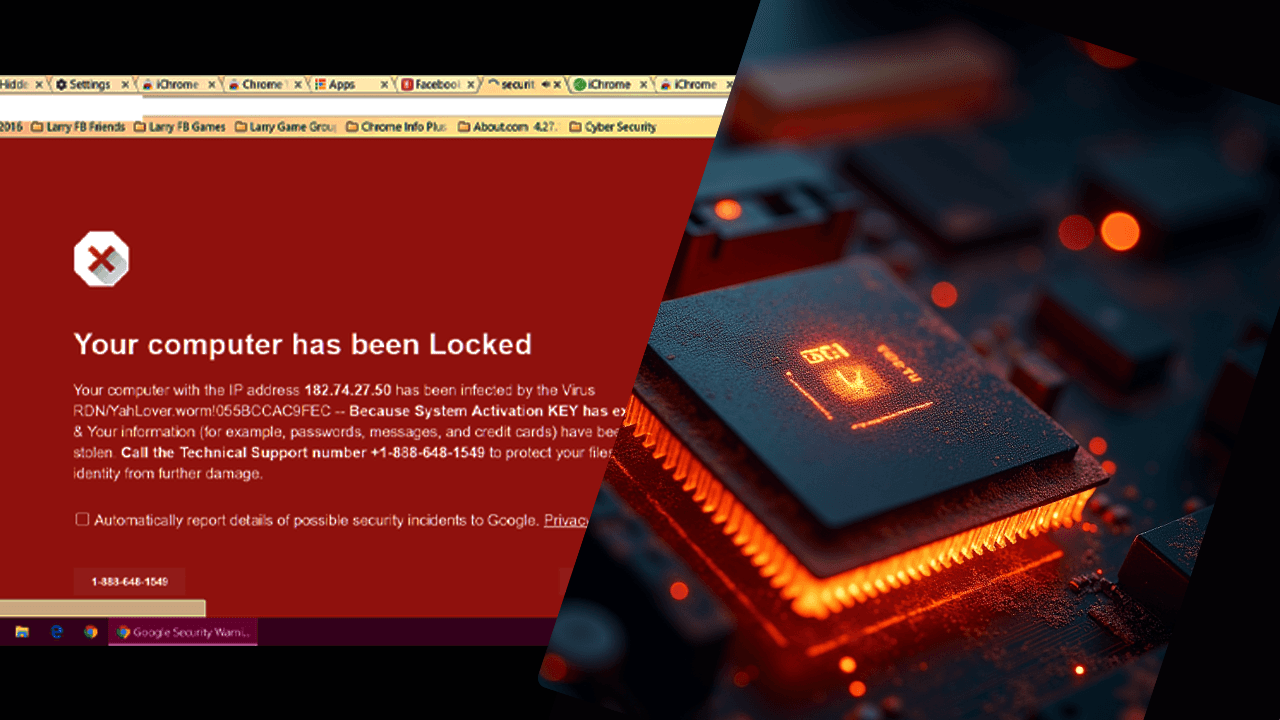
Unexpected restarts are often the result of underlying hardware or software issues. Here are the problems we see most often at Focus PC:
- Overheating (Thermal Shutdown Protection)
Modern computers are designed with automatic protection mechanisms. When temperatures spike beyond safe limits, the system restarts to prevent damage.
Blocked vents, dust buildup, dried thermal paste, and failing fans are the usual culprits. Laptops are particularly vulnerable because of compact cooling systems. - Faulty RAM or Power Supply Unit (PSU)
If your RAM sticks are loose, damaged, or mismatched, your PC may restart randomly. Similarly, a weak or failing PSU cannot deliver stable power, causing sudden shutdowns or voltage dips.
These issues often show up during heavy tasks like gaming, rendering, or multitasking. - Corrupted System Files & Failed Windows Updates
A damaged Windows installation is a common reason for constant restart loops. This usually happens after forced shutdowns, sudden power cuts, or updates that did not finish properly. When the system tries to repair itself, it sometimes fails and ends up stuck in a continuous cycle of restarting. - Malware or Virus Infection
Malware can force restarts, corrupt system files, overload resources, or interfere with startup processes. Certain viruses create reboot loops intentionally to prevent removal. - Outdated Drivers or BIOS Conflicts
New updates sometimes clash with old drivers.
Outdated graphics drivers, old motherboard firmware, or corrupted BIOS settings can also trigger nonstop restarts. This problem becomes even more common right after you install new hardware, because the system struggles to run properly with incompatible or outdated settings.
How to Fix a PC That Keeps Restarting (Step-by-Step Troubleshooting)
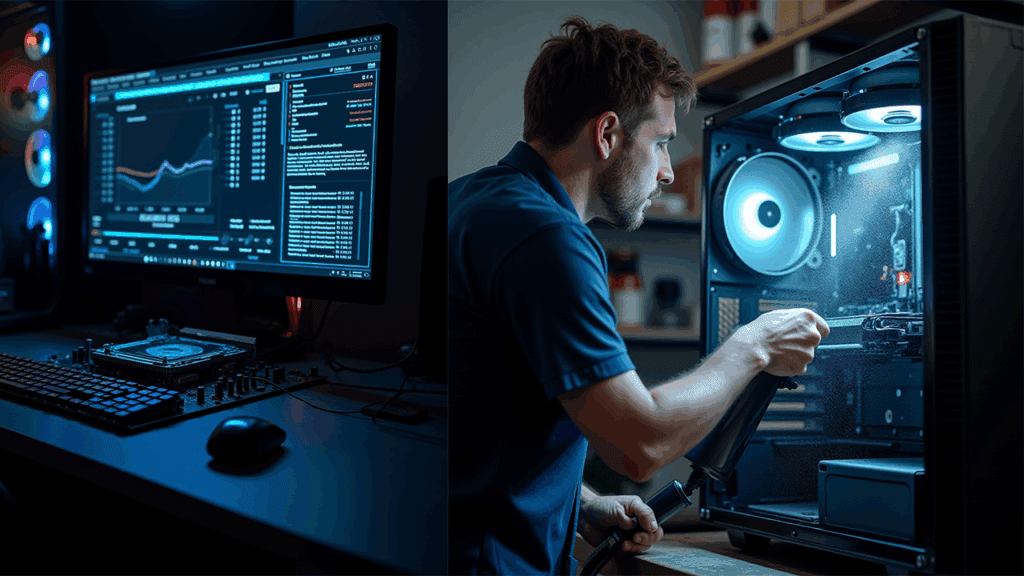
You can perform several safe checks at home before deciding on a professional repair.
1. Booting into Safe Mode starts your computer with only the essential drivers and services, and if the system stays stable here, it usually means the issue is related to software such as a faulty driver, a problematic application, or malware.
2. Running a complete antivirus and malware scan is essential when your PC keeps restarting. Tools such as Windows Defender Offline Scan, Malwarebytes, or ESET can detect threats that hide inside system processes, and an offline scan is often the most effective way to remove infections that cause restart loops.
3. Updating or rolling back your drivers can often stop unexpected restart issues. Open Device Manager and check for any driver conflicts, then update important drivers such as graphics, chipset, and network components. If the problem began right after a recent update, rolling the driver back to its previous version can help restore stability.
4. Monitor your system temperatures using tools like HWMonitor or Core Temp, as overheating is a common cause of restart loops. If your CPU or GPU temperatures rise into the mid-80s or 90 degrees Celsius, your system is likely shutting down to protect itself. In that case, clean any dust buildup and make sure all fans are spinning properly so the PC can cool itself effectively.
5. Cleaning the inside of your desktop can make a big difference when dealing with restart issues, because dust buildup restricts airflow and leads to sudden heat spikes. Turn the PC off, remove the side panel, and gently blow out the dust using compressed air while avoiding direct contact with the components to keep everything safe and clean.
6. Running memory diagnostics helps you determine whether faulty RAM is causing the restart problem. Use tools like Windows Memory Diagnostic or MemTest86 to scan your system, because bad RAM often leads to sudden restarts rather than traditional blue-screen errors
7. Check your power supply if your PC is experiencing random restarts, especially during heavy tasks, because a failing PSU is one of the most common causes of sudden power loss. You might even notice crackling sounds or brief power cuts when the PSU is struggling. Since proper PSU testing requires specialised equipment, identifying this issue at home can be difficult, and professional diagnostics are often necessary.
When You Should Let Focus PC Take Over
If your PC is still restarting after basic checks, the problem is likely deeper than simple software issues. These are signs you need expert diagnostics:
• Restarting even in Safe Mode usually means the issue is caused by a hardware failure.
• Random restarts that happen only during heavy tasks are usually caused by a failing PSU, faulty RAM, or a GPU power delivery issue.
• Overheating even after cleaning the system often means you are dealing with a failing fan, dried thermal paste, or a cooling system that is starting to fail.
• A restart loop that happens during login or startup often indicates bootloader corruption or a failing SSD.
At Focus PC, we use advanced diagnostics to pinpoint exactly what is causing your computer to restart. Our team performs thorough component stress tests, BIOS and firmware checks, PSU load assessments, RAM stability testing, and deep operating system analysis. This detailed approach ensures we identify the true source of the problem, so you avoid guesswork, unnecessary part replacements, and wasted money.
A restarting PC is a warning sign you shouldn’t ignore
A computer that keeps restarting is trying to tell you something. Whether it’s overheating, failing hardware, malware, or corrupted software, the longer you delay the fix, the higher the risk of data loss or permanent damage.
If your PC is stuck in a restart loop and DIY fixes haven’t solved it, we’re here to help.Do not let a restarting PC slow down your work. Trust Focus PC to diagnose the problem accurately and fix it the right way. We offer fast turnaround times, expert repair services, and clear, honest diagnostics so you always know exactly what your computer needs.